Vizio SmartCast televisions
Vizio SmartCast remote app for iPhone & Android
Vizio SmartCast exposes a local control service secured with its own certificate. EveryMote pairs with it using a code shown on the TV, then stores the resulting token so later connections are automatic.
Free to use · Every remote feature included · No account
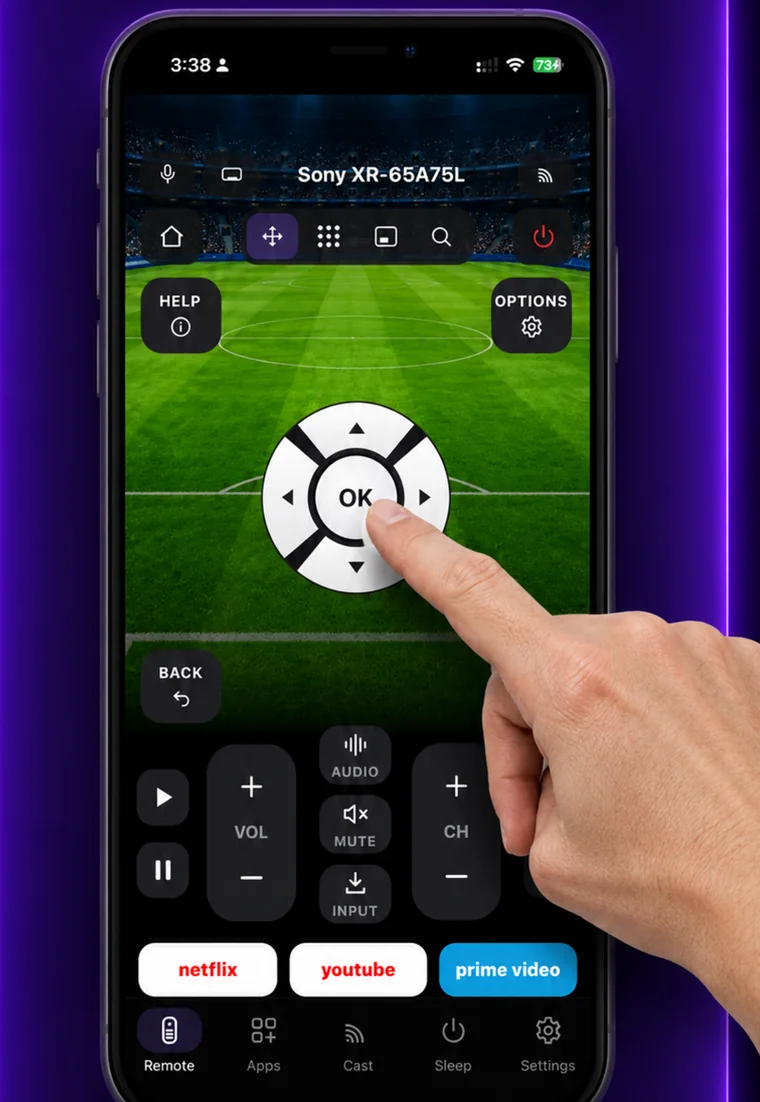
Setting it up
EveryMote is a universal TV remote control app for iPhone and Android, so the same app that controls your Vizio also controls every other smart TV in the house.
- 1
Put the phone and TV on the same Wi-Fi network.
- 2
Open EveryMote and tap your Vizio.
- 3
The TV displays a pairing code. Enter it in the app.
- 4
The remote opens once the code is accepted.
What you get
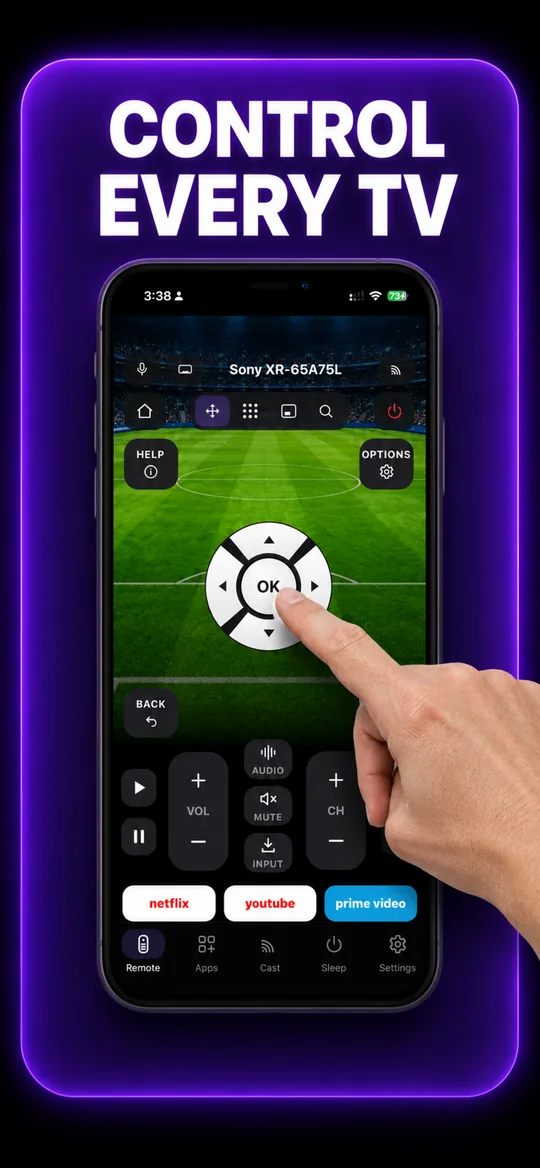
The full remote 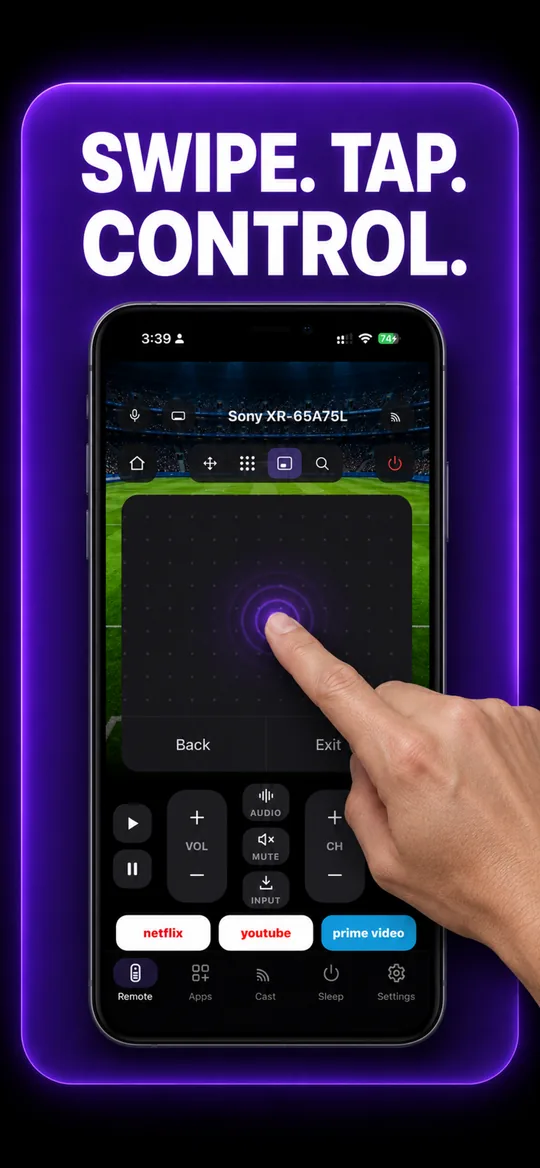
Swipe trackpad 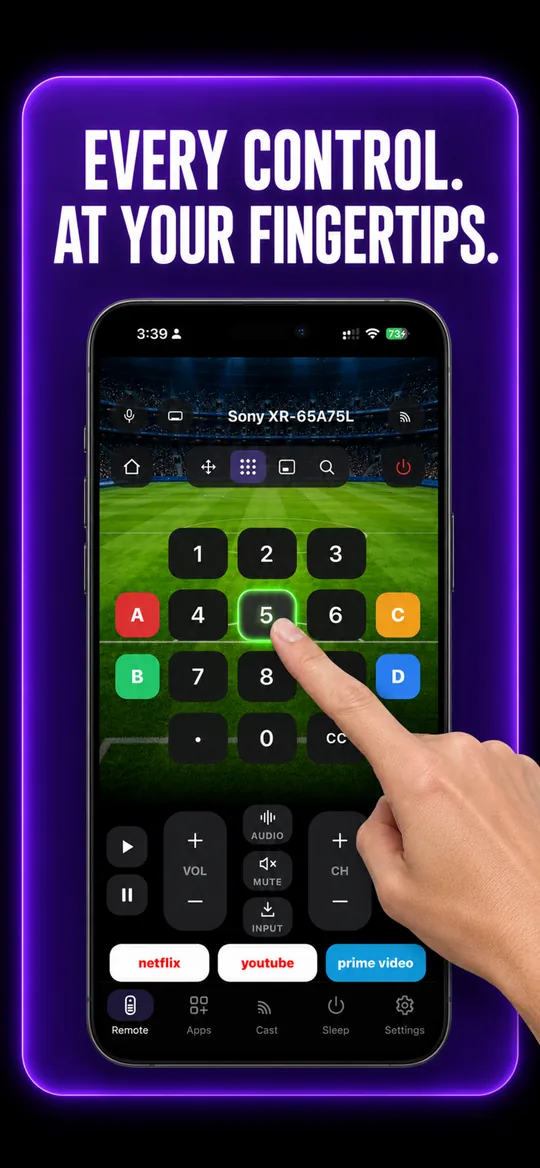
Number pad 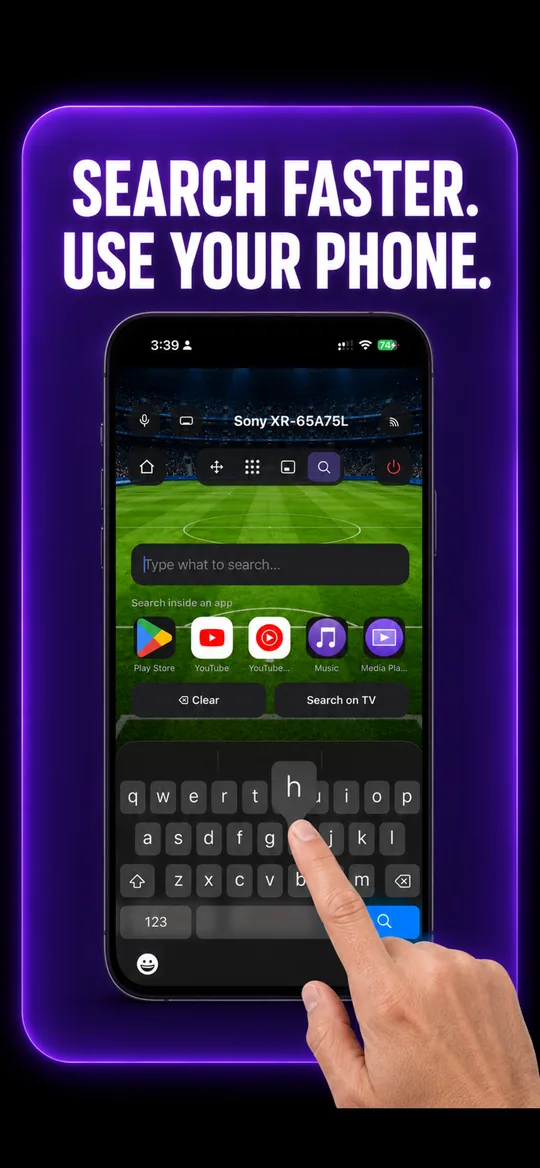
Type instead of pecking 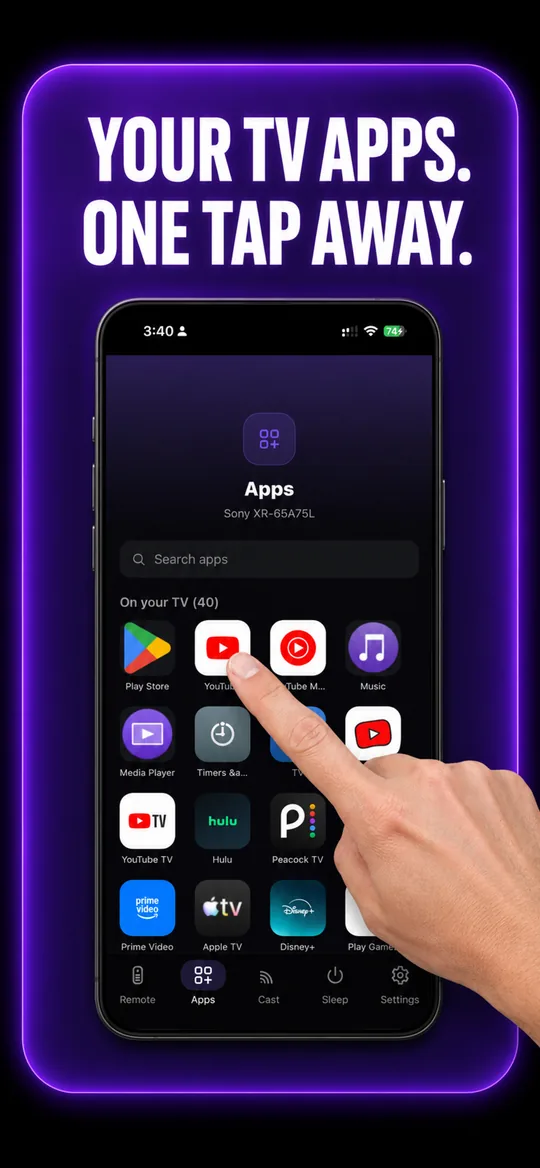
Your TV’s own apps 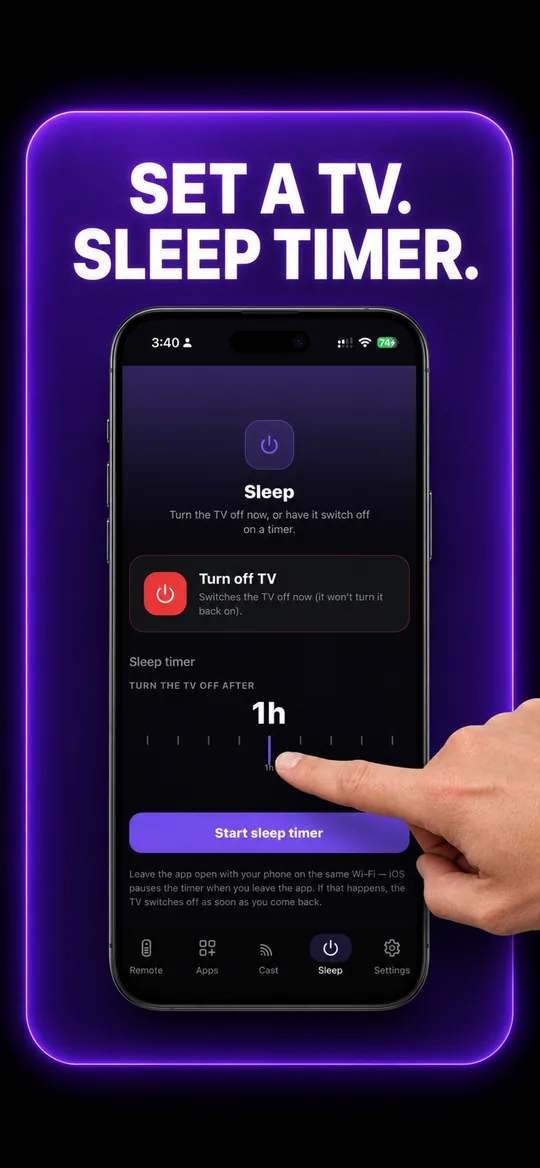
Sleep timer
Vizio questions
- How do I connect my phone to my Vizio SmartCast TV?
- Put both on the same Wi-Fi, open EveryMote and tap the Vizio. A pairing code appears on the TV — enter it in the app, and the token is stored so later connections are automatic.
- The pairing code does not appear on my Vizio.
- Make sure the TV is fully on rather than in standby, and that the phone is on the same Wi-Fi network — not a guest network. If it still does not appear, restart the TV and try again from the app’s pairing screen.
Other TVs EveryMote controls
SamsungLGRokuFire TVSony BRAVIAGoogle TV & Android TVHisenseTCLPanasonicToshibaSharpPhilipsInsigniaonnXiaomi & Mi TVNokiaThomsonGrundigVestelBekoSkyworthHaierJVCHitachiElementWestinghouseTelefunkenBlaupunktOnePlusRealmeVUKonkaChanghongCoocaaiFFALCONSanyoMagnavoxRCABushLogikCelloFinluxPolaroidMedionHyundaiMetzLoeweSansuiAiwaKoganWalton
Not listed? See everything EveryMote supports — or check the support pages.
Lost the Vizio remote?
It takes about thirty seconds to set up.