Roku players and Roku TVs (TCL, Hisense, onn, Sharp and others)
Roku remote app for iPhone & Android
Roku publishes a control interface on your network, so EveryMote finds your Roku and controls it with no pairing step at all — it simply works as soon as both devices are on the same Wi-Fi.
Free to use · Every remote feature included · No account
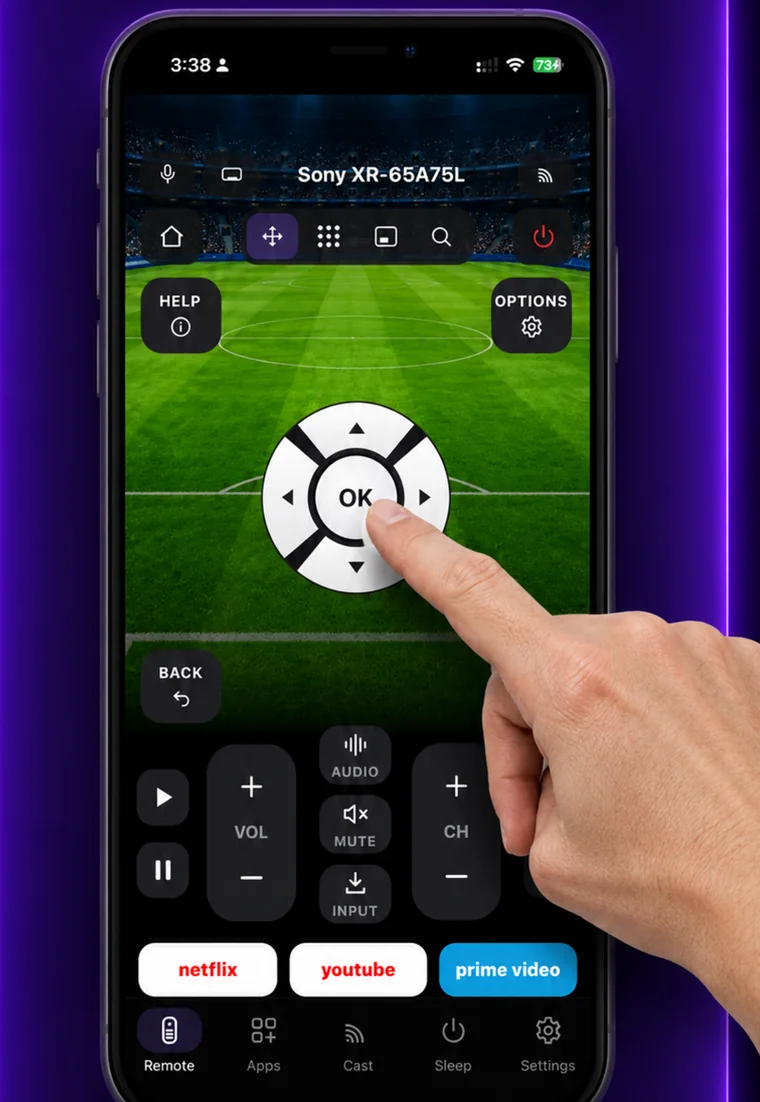
Setting it up
EveryMote is a universal TV remote control app for iPhone and Android, so the same app that controls your Roku also controls every other smart TV in the house.
- 1
Put the phone and Roku on the same Wi-Fi network.
- 2
Open EveryMote. The Roku appears by name, with no code to enter.
- 3
Tap it and the remote opens straight away.
Worth knowing
Roku has a privacy setting that blocks phone remotes, and it is by far the most common reason a Roku appears to ignore the app. If volume works but the arrows and OK do nothing, that setting is the cause — see below.
What you get
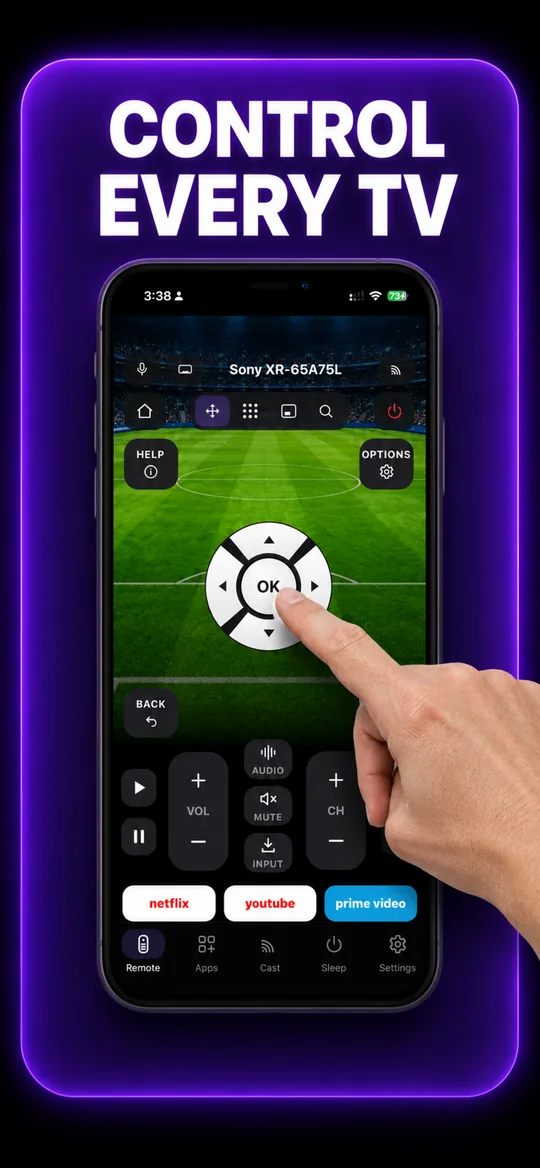
The full remote 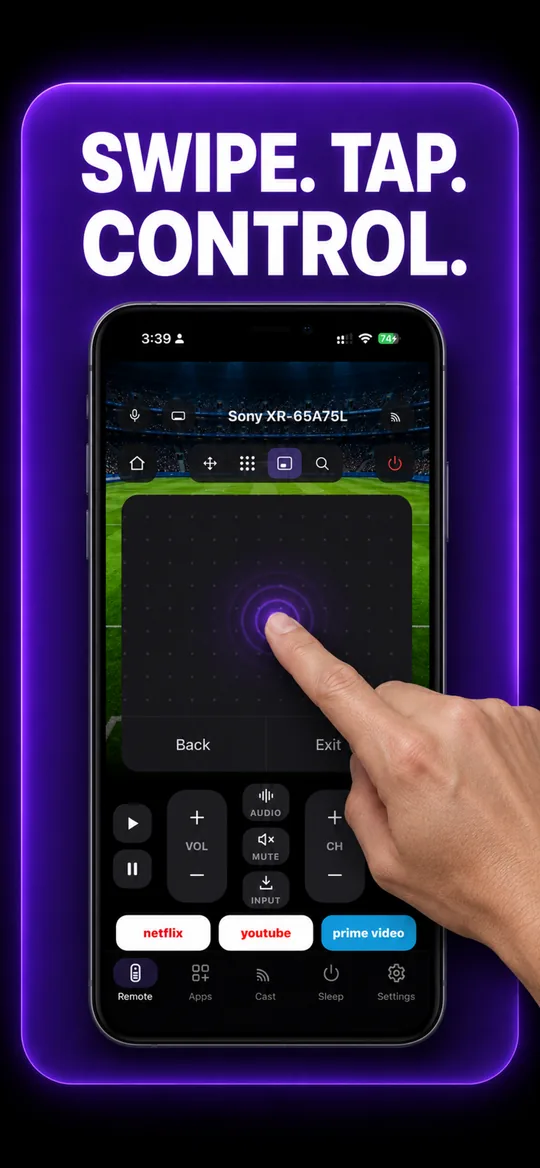
Swipe trackpad 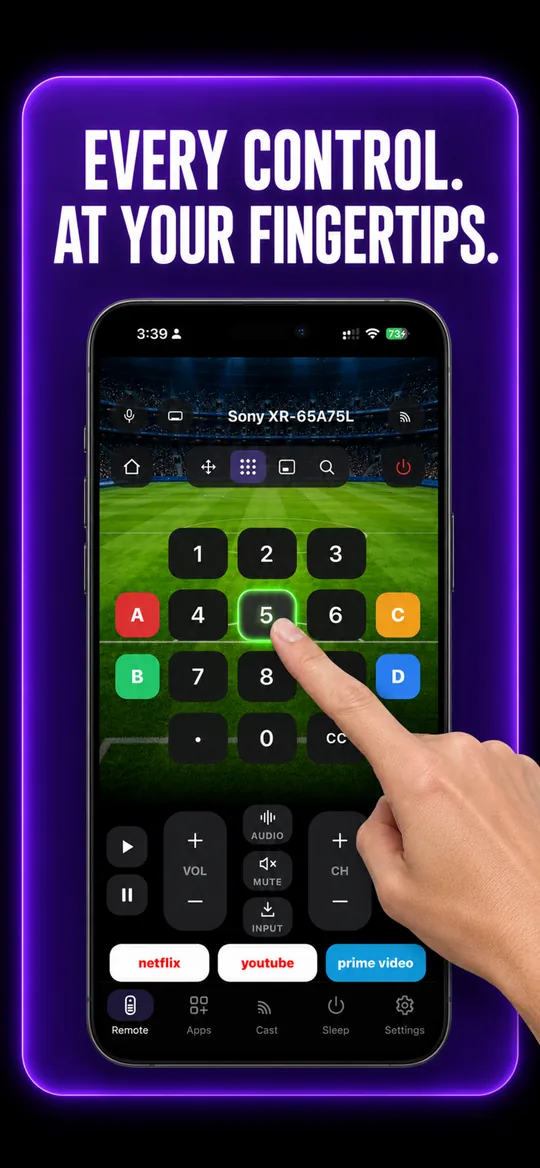
Number pad 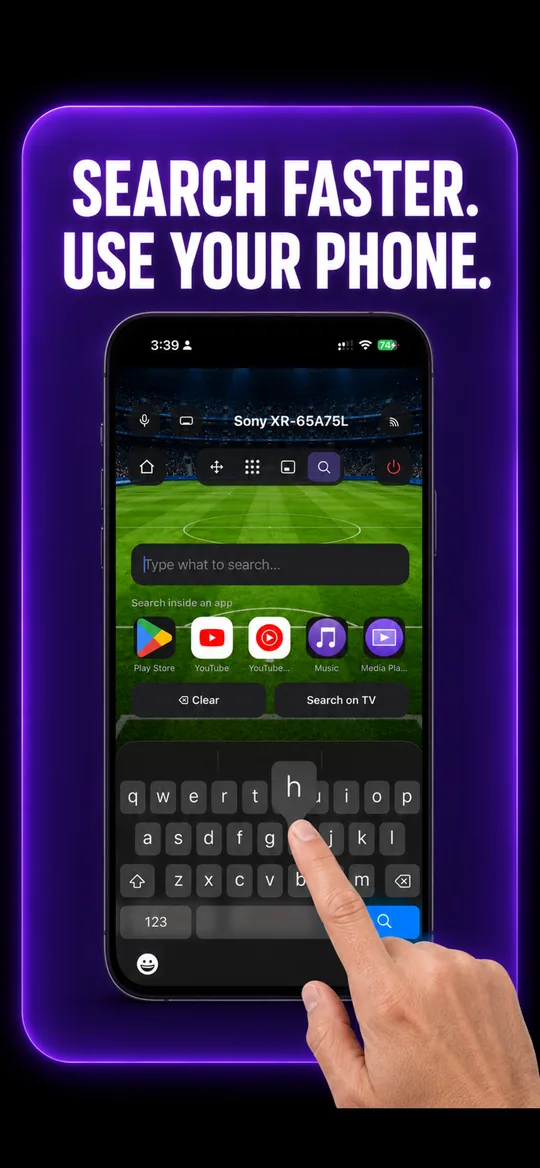
Type instead of pecking 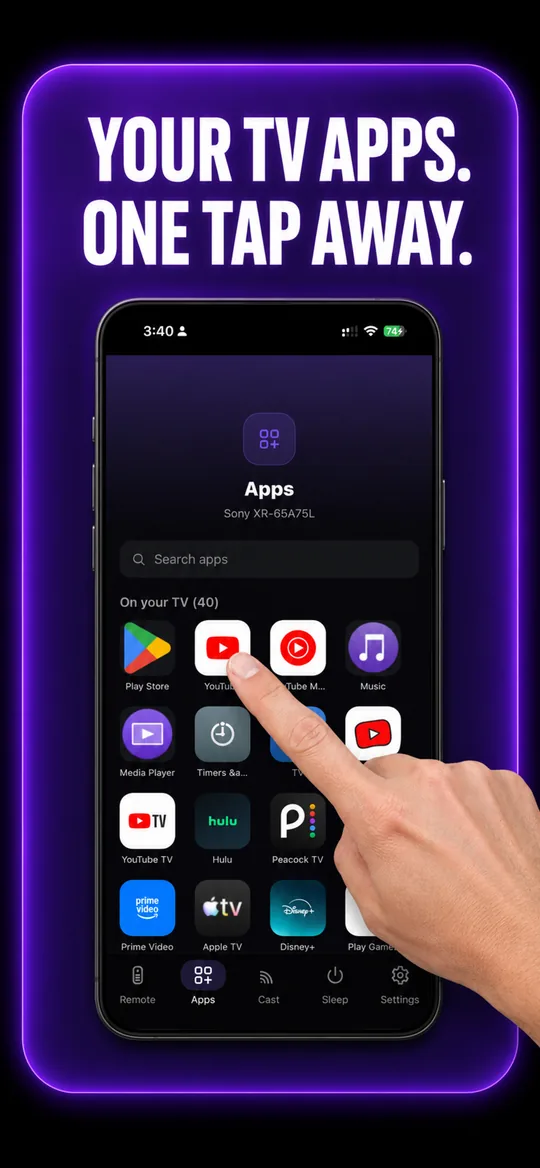
Your TV’s own apps 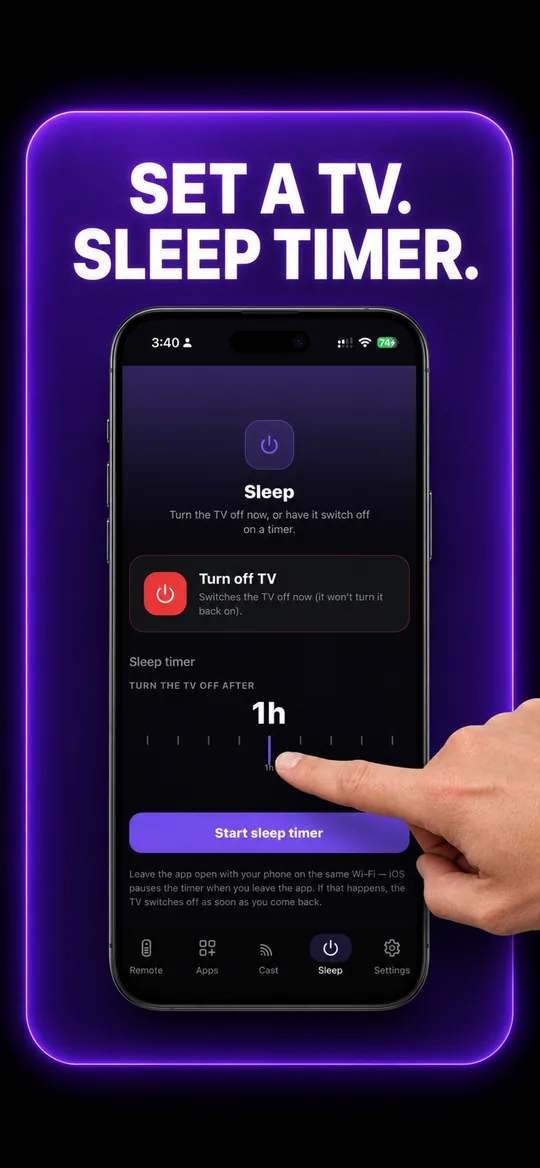
Sleep timer
Roku questions
- How do I connect my phone to my Roku?
- Put both on the same Wi-Fi and open EveryMote — the Roku appears and connects with no code and no account. If the buttons do nothing afterwards, enable Settings → System → Advanced system settings → Control by mobile apps on the TV.
- My Roku ignores the buttons — volume works but nothing else does.
- On the TV go to Settings → System → Advanced system settings → Control by mobile apps, and set it to “Enabled”. If there is a “Network access” option underneath, choose “Permissive”. Volume is often handled separately, which is why part of the remote can appear to work while the rest is blocked.
- Do I need a pairing code for Roku?
- No. Roku needs no code and no account — unlike Samsung or LG, there is nothing to accept on the TV. If it is not responding, it is the “Control by mobile apps” setting above, or the phone being on a different Wi-Fi network.
- Does this work with TCL and Hisense TVs?
- If they are Roku TVs, yes — they behave exactly like any other Roku. TCL and Hisense also sell Google TV and VIDAA models, which EveryMote supports through those platforms instead. The app works out which one you have automatically.
Other TVs EveryMote controls
Not listed? See everything EveryMote supports — or check the support pages.
Lost the Roku remote?
It takes about thirty seconds to set up.