TCL Roku TV and TCL Android/Google TV models
TCL TV remote app for iPhone & Android
TCL sells Roku TVs in some markets and Google TV sets in others. EveryMote identifies which platform your TV runs and uses the right protocol, so the same app covers both.
Free to use · Every remote feature included · No account
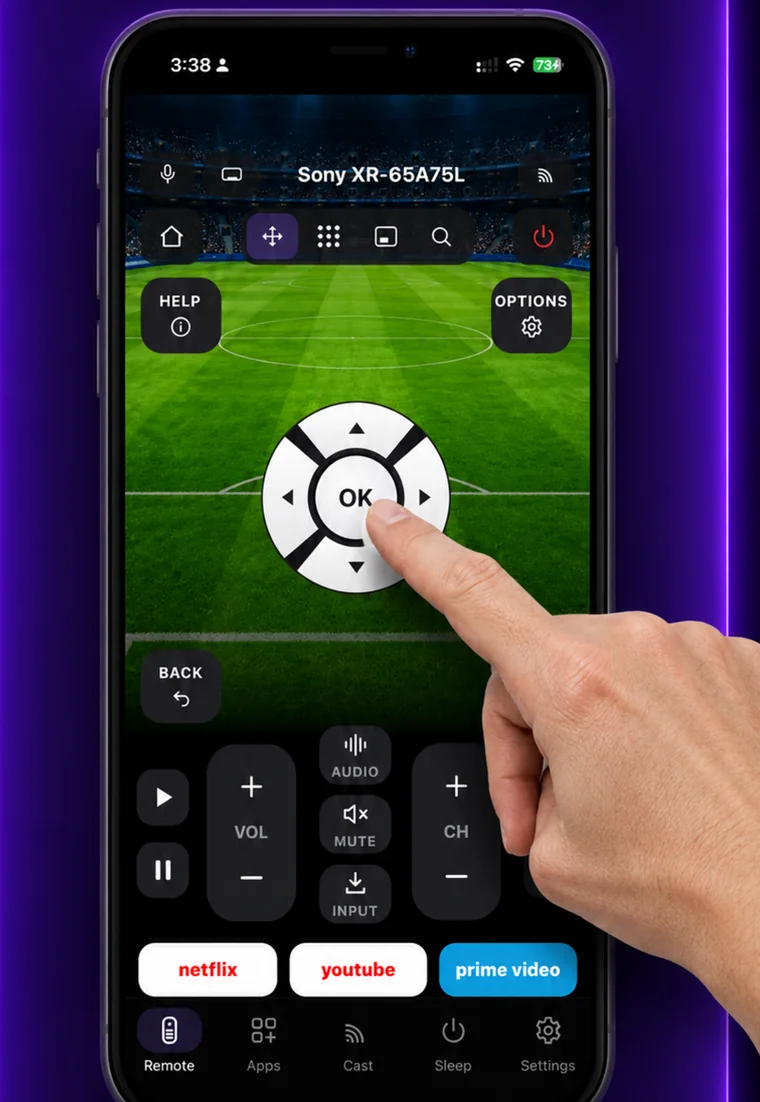
Setting it up
EveryMote is a universal TV remote control app for iPhone and Android, so the same app that controls your TCL also controls every other smart TV in the house.
- 1
Put the phone and TV on the same Wi-Fi network.
- 2
Open EveryMote and let it scan.
- 3
On a TCL Roku TV it connects immediately. On a TCL Google TV, enter the pairing code shown on screen.
What you get
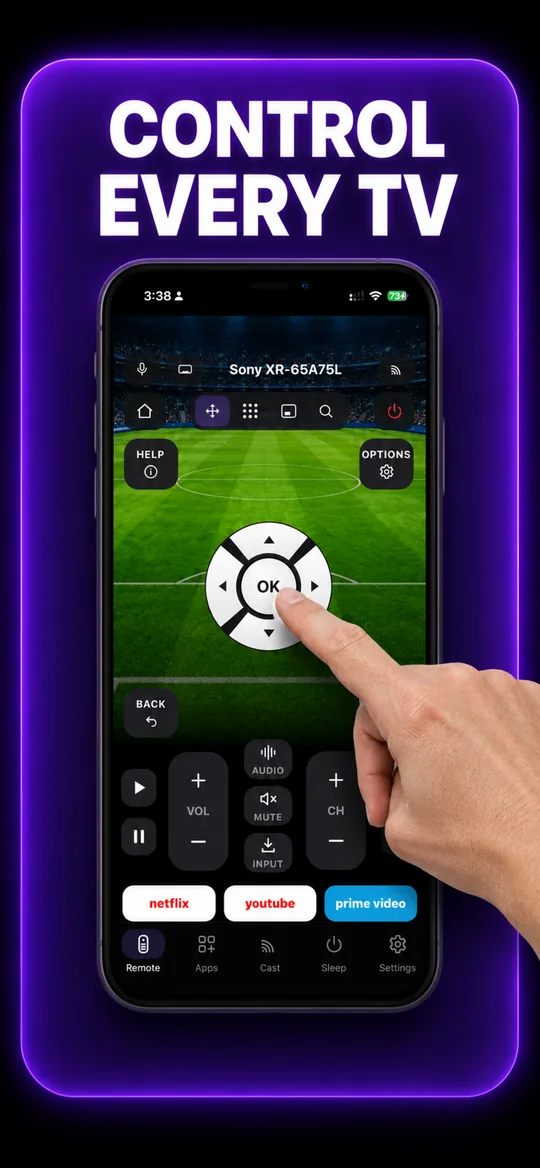
The full remote 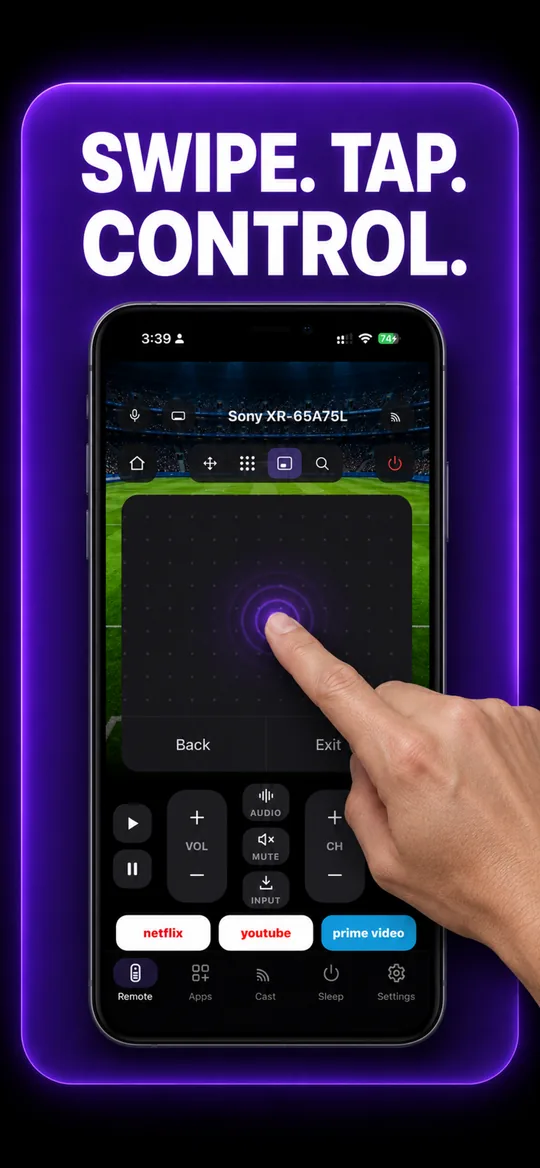
Swipe trackpad 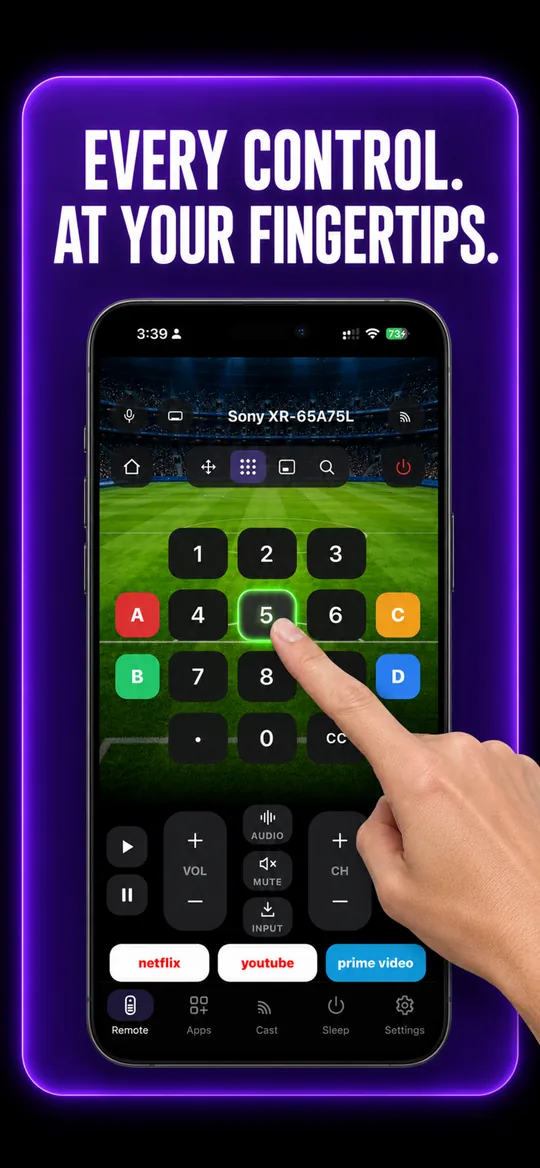
Number pad 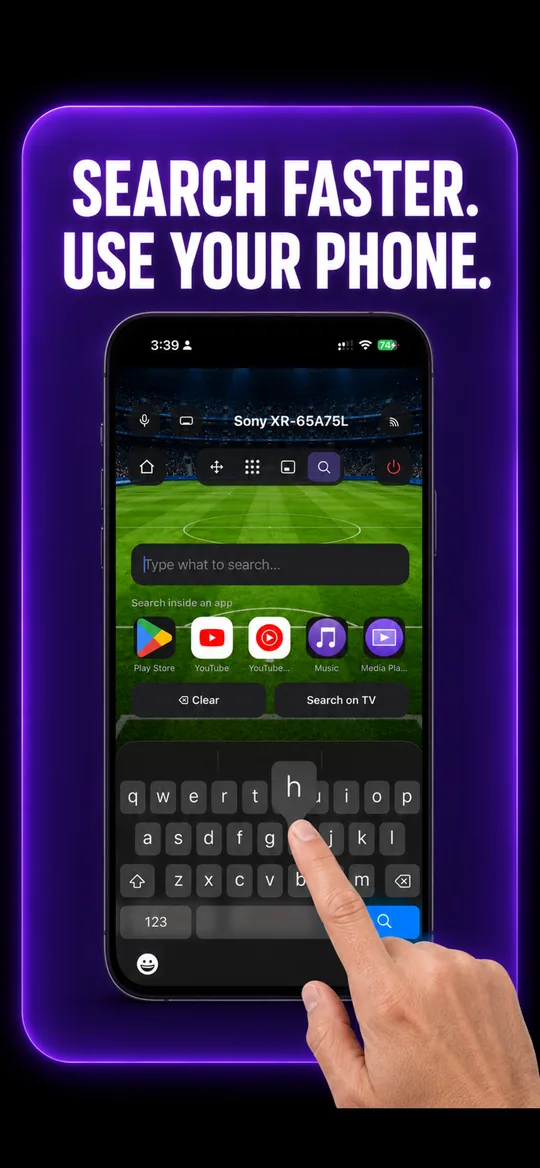
Type instead of pecking 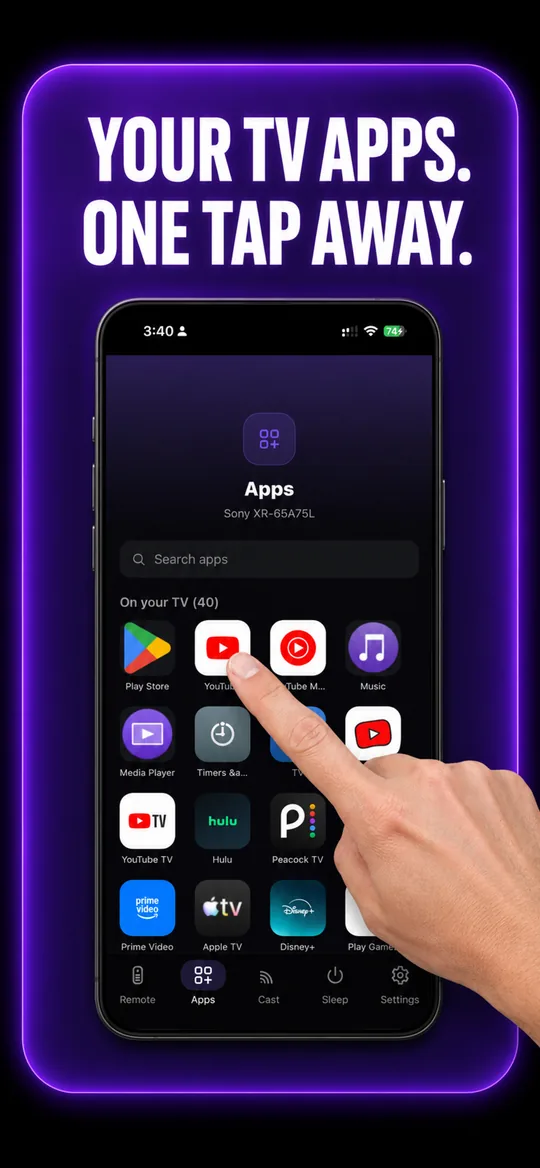
Your TV’s own apps 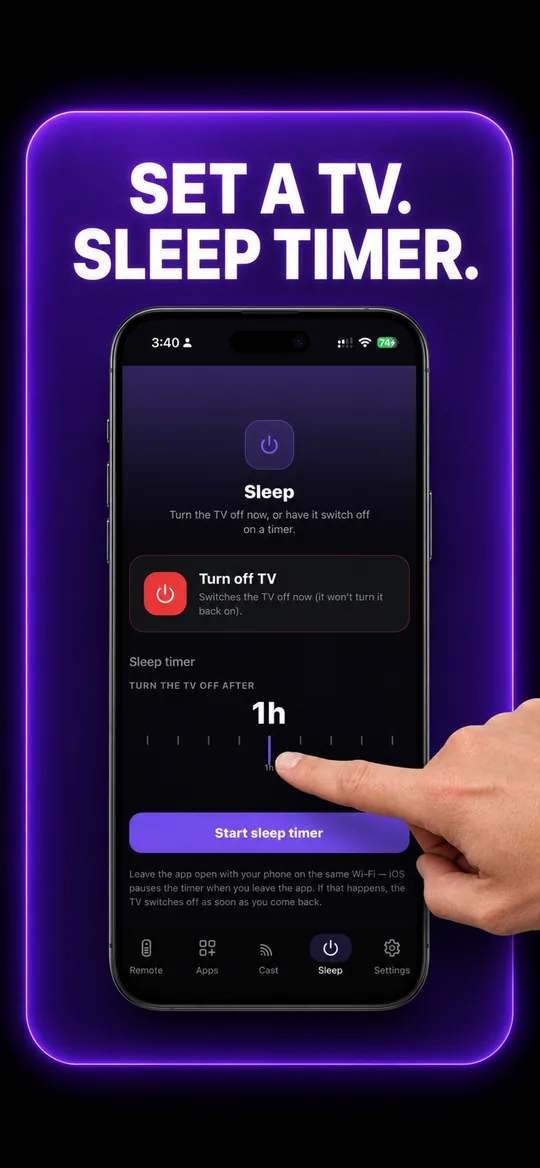
Sleep timer
TCL questions
- How do I connect my phone to my TCL TV?
- Put both on the same Wi-Fi and open EveryMote. A TCL Roku TV connects immediately with no code; a TCL Google TV shows a pairing code to enter in the app.
- My TCL connects but the arrows do nothing.
- On TCL Roku TVs this is Roku’s “Control by mobile apps” setting: Settings → System → Advanced system settings → Control by mobile apps → Enabled, and set Network access to Permissive if it is offered.
Other TVs EveryMote controls
SamsungLGRokuFire TVSony BRAVIAGoogle TV & Android TVVizioHisensePanasonicToshibaSharpPhilipsInsigniaonnXiaomi & Mi TVNokiaThomsonGrundigVestelBekoSkyworthHaierJVCHitachiElementWestinghouseTelefunkenBlaupunktOnePlusRealmeVUKonkaChanghongCoocaaiFFALCONSanyoMagnavoxRCABushLogikCelloFinluxPolaroidMedionHyundaiMetzLoeweSansuiAiwaKoganWalton
Not listed? See everything EveryMote supports — or check the support pages.
Lost the TCL remote?
It takes about thirty seconds to set up.