Philips sets running Android TV or Google TV
Philips TV remote app for iPhone & Android
Philips does not build its own TV platform — its sets run Android TV or Google TV, and EveryMote speaks all of them natively. Most Philips smart TVs run Android TV or Google TV. If the home screen has a Google Play Store, that is yours. The app detects which one your TV runs while it scans, so you do not have to.
Free to use · Every remote feature included · No account
Setting it up
EveryMote is a universal TV remote control app for iPhone and Android, so the same app that controls your Philips also controls every other smart TV in the house.
- 1
Put the phone and TV on the same Wi-Fi network — not a guest network.
- 2
Open EveryMote and let it scan. Your Philips appears by name.
- 3
Tap it, then complete whatever step your platform asks for: a code on Android, Google TV and VIDAA sets, an authorisation prompt on Fire TV, and nothing at all on Roku models.
- 4
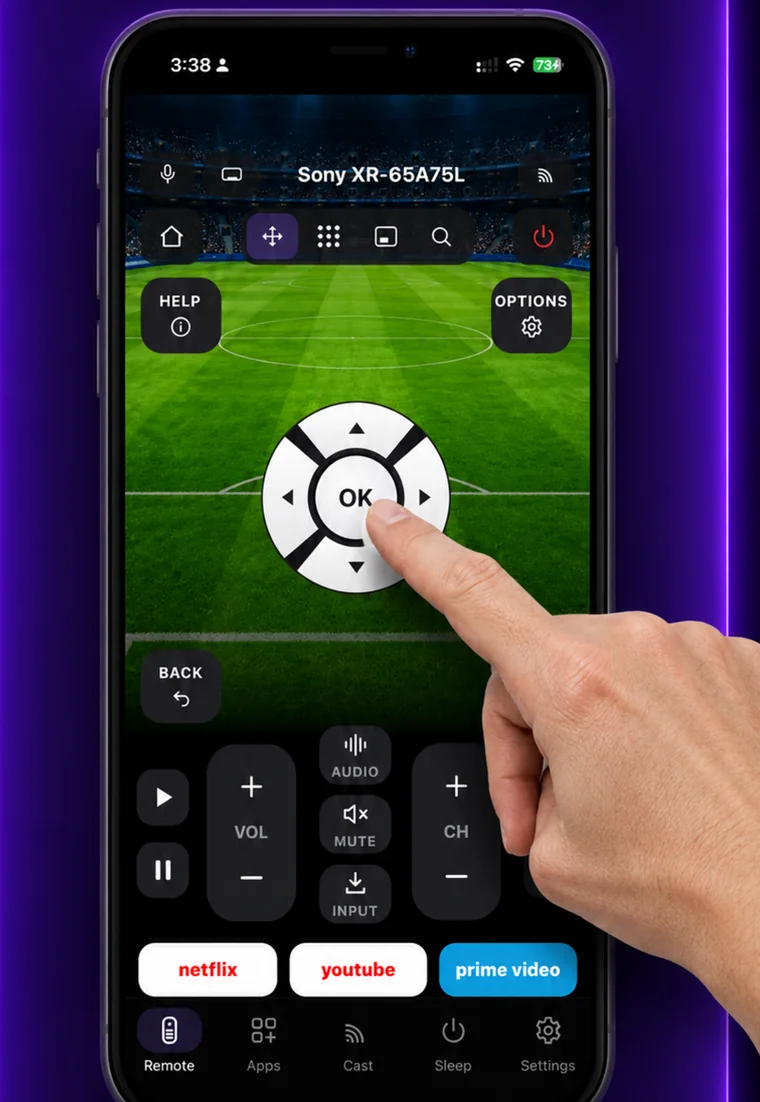
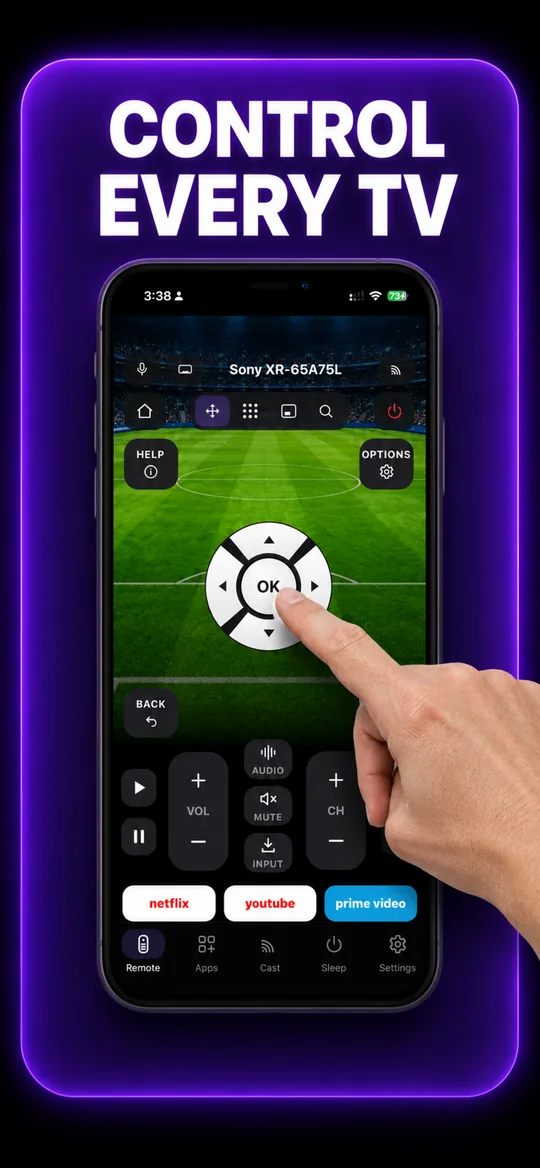
The full remote opens: D-pad, volume, channels, playback, number pad and keyboard.
Because these sets run someone else's platform, the platform setup page covers the same steps in more detail, including its brand-specific settings.
Worth knowing
Philips discovery was rebuilt in version 2026.2.0 — if an older build could not find your set, update and rescan.
What you get
The full remote 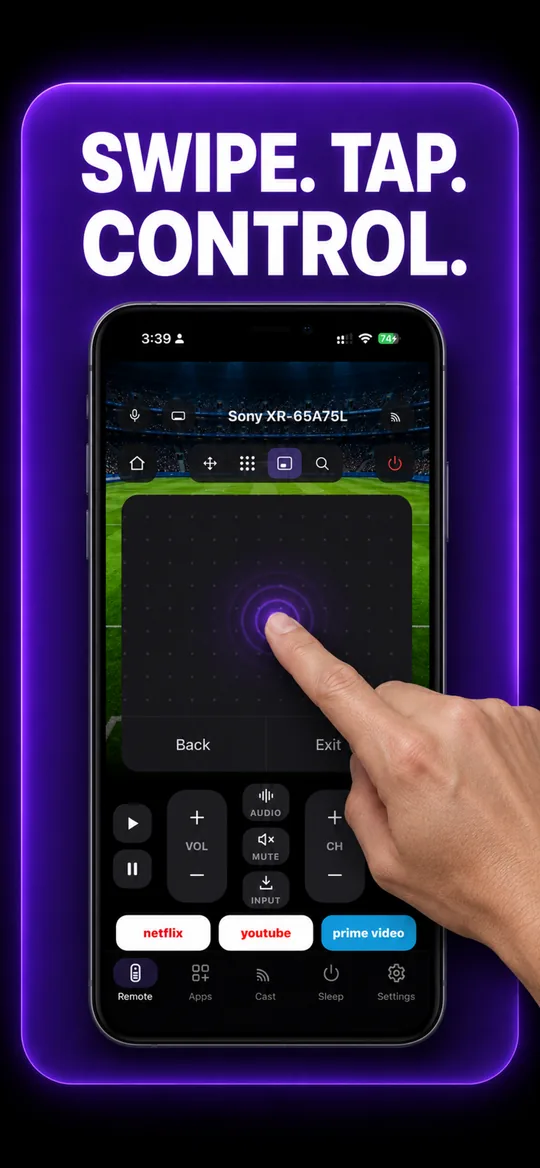
Swipe trackpad 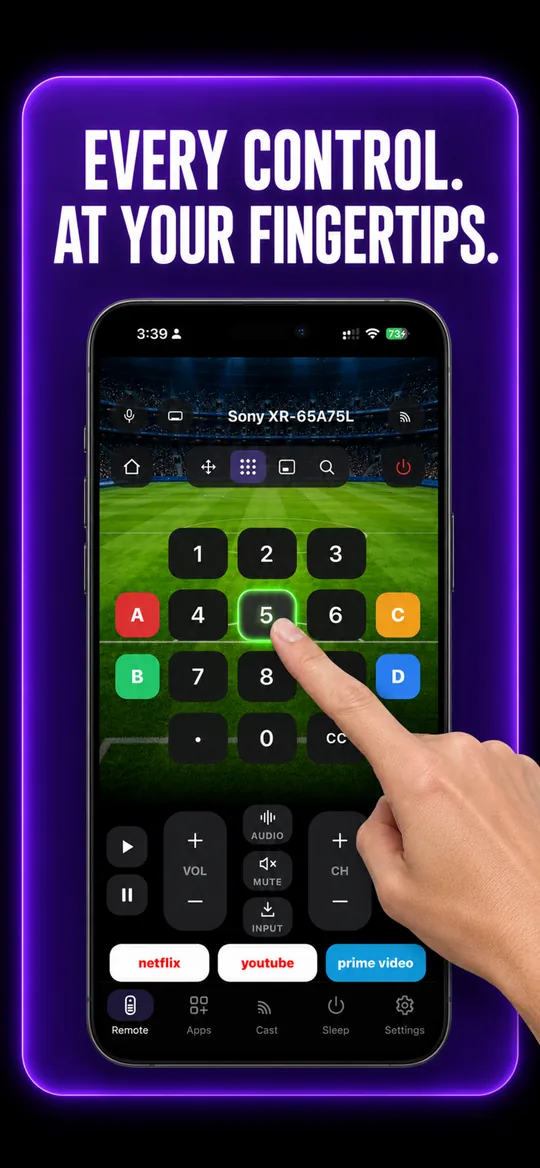
Number pad 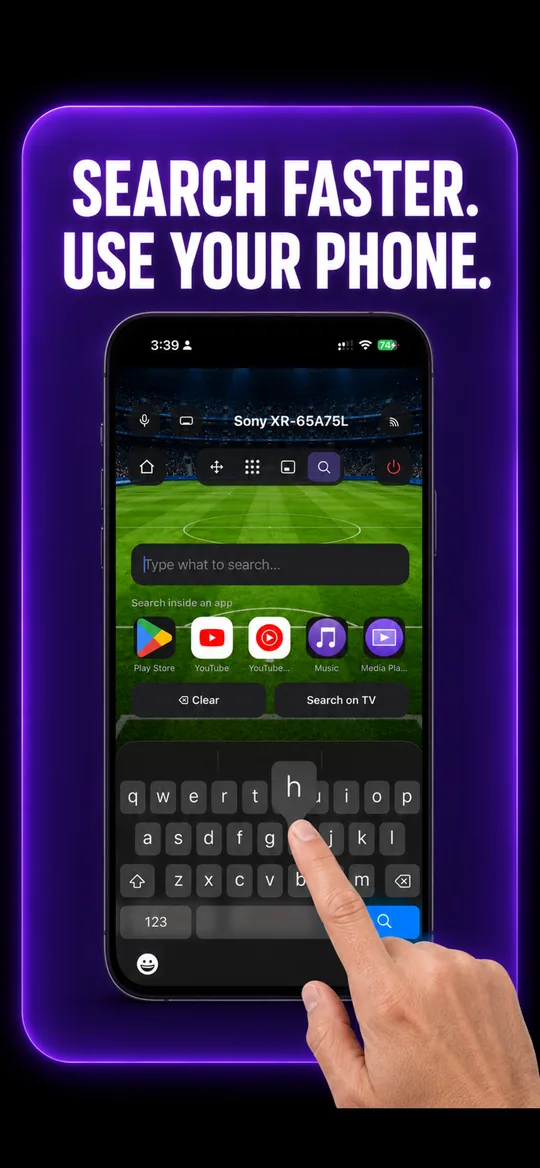
Type instead of pecking 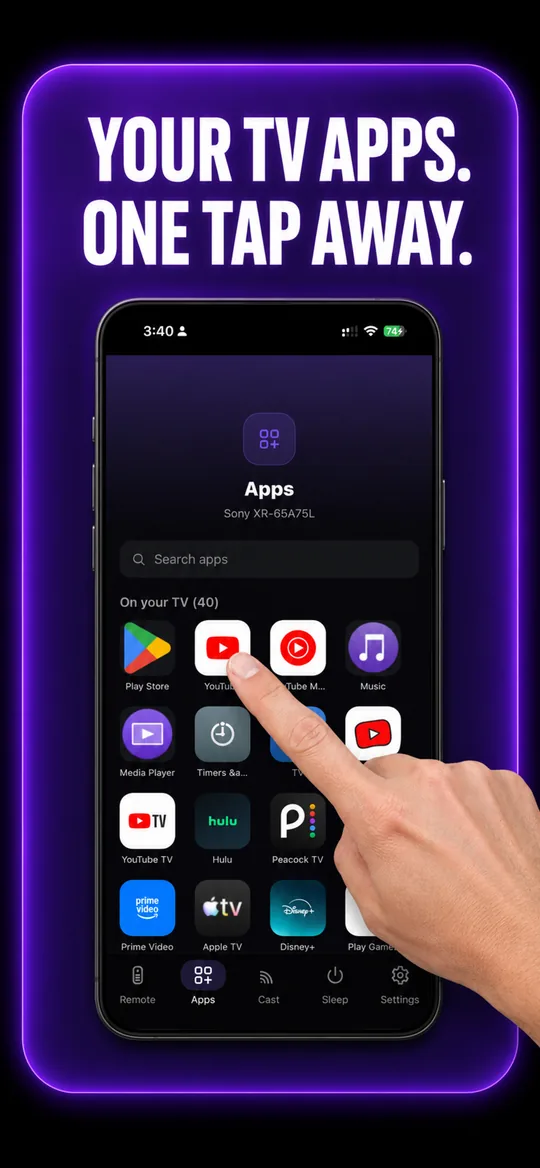
Your TV’s own apps 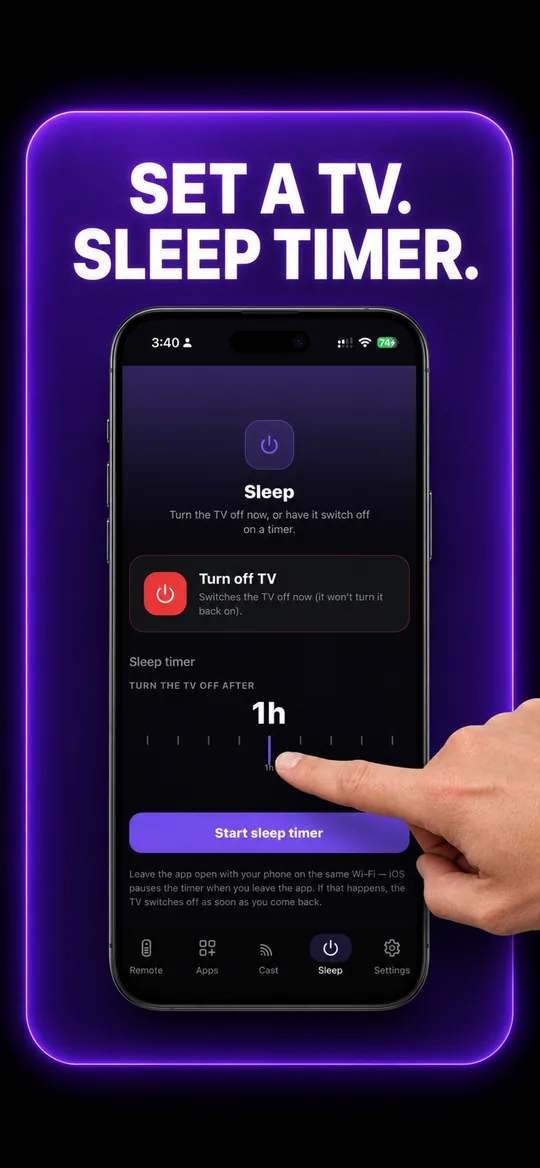
Sleep timer
Philips questions
- How do I connect my phone to my Philips TV?
- Put the phone and the TV on the same Wi-Fi network, open EveryMote and let it scan — your Philips appears by name within a few seconds. Tap it and complete the one step its platform asks for: a code on screen for Android and Google TV sets, an authorisation prompt on Fire TV, and nothing at all on Roku models. No cables, no account, no IP address to type in.
- How do I use my phone as a remote for a Philips TV?
- Install EveryMote, connect once as above, and the full remote opens — D-pad, OK, back, home, volume, channels, playback, a number pad and a keyboard for typing into search boxes. It stays paired, so afterwards it is just open and use.
- Which platform does my Philips TV run?
- Most Philips smart TVs run Android TV or Google TV. If the home screen has a Google Play Store, that is yours. You do not need to check before using the app — EveryMote identifies it during the scan and connects the right way.
- Is the Philips remote app free?
- Yes. Every remote feature works without paying — the free version is supported by ads, and Premium only removes them. Nothing about the remote itself is behind the paywall.
- My Philips TV is not found.
- Almost always the network: the phone must be on the same Wi-Fi as the TV, not cellular data and not a guest or IoT network, which many routers isolate. Make sure the TV is fully on rather than in standby, then rescan.
Other TVs EveryMote controls
Not listed? See everything EveryMote supports — or check the support pages.
Lost the Philips remote?
It takes about thirty seconds to set up.